Cybersecurity Cyber Range
Resources
Cyber Range and Kali Linux Commands
Purpose
Access Your Cyber Range Account
- Mr. Cusack will provide your password.
- Click here to log in to your Cyber Range. Click on your Kali server.
Note: To copy and paste between the Linux virtual environment and your Windows environment, use Ctrl + Shift + Alt.
Due Date: August 24, 2026
Simple Python Game
Code is below. We will use this later. Review it.
 ```python
# Import the random module so the computer can choose a random number
import random

# Display the game title
print("================================")
print("       GUESS THE NUMBER")
print("================================")

# The computer selects a random number between 1 and 100
secret_number = random.randint(1, 100)

# Keep track of how many guesses the player makes
guesses = 0

# Give guess a starting value
guess = 0

# Explain the goal of the game
print("I am thinking of a number between 1 and 100.")

# Keep repeating the game until the player guesses the correct number
while guess != secret_number:

    # Ask the player to enter a number
    # int() converts the keyboard input into an integer
    guess = int(input("Enter your guess: "))

    # Add 1 to the number of guesses
    guesses += 1

    # Check if the player's guess is too low
    if guess < secret_number:
        print("Too low! Try again.")

    # Check if the player's guess is too high
    elif guess > secret_number:
        print("Too high! Try again.")

    # If the guess is not too low or too high,
    # then the player guessed the correct number
    else:
        print()
        print("Correct!")

        # Display the secret number
        print("The number was:", secret_number)

        # Display how many guesses it took
        print("You guessed it in", guesses, "tries.")

# This message appears after the game is finished
print("Thanks for playing!")
```
Note: To copy and paste between the Linux virtual environment and your Windows environment, use Ctrl + Shift + Alt.
Due Date: August 24, 2026
You should have your Terminal Box open.
Purpose
Learning Linux top 10 Commands
- Mr. Cusack will show you.
- Click here to see 10 most used Linux.
Note: To copy and paste between the Linux virtual environment and your Windows environment, use Ctrl + Shift + Alt.
Due Date: August 24, 2026
You should have your Terminal Box open.
Purpose
We will run a python Game.
- Mr. Cusack will show you.
- Screen print your python file name.
- Save your file as PX_lastname_PythonGame.py
- Video running the program.
- Save the video as PX_lastname_PythonGame.mp4.
- Drop off 2 files into google classroom.
Note: To copy and paste between the Linux virtual environment and your Windows environment, use Ctrl + Shift + Alt.
Due Date: August 28, 2026
Learning about Kali Linux File/Folder Permissions.
- You will need to run a command to set up another user in Kali Linux.
- Once your Kali Linux cyber account is running, open a terminal.
- Run the following command:
sudo adduser yourname - Replace yourname with your first name.
- First, we will learn about Kali Linux file and folder permissions.
- Click here to learn about file and folder permissions.
- Mr. Cusack will lecture on this.
Due Date: August 28, 2026
Complete this: Permission1, Permission2, Permission3, and Permission4
- Assignment 1: Create a file named after your favorite sport or activity.
- Use the
touchcommand. - Create another user that we will work with later.
- Run the following
chmodcodes: 700, 600, 500, 400, 300, 200, 100, 000. - Example:
chmod 700 sports - Run
ls -lto see how the permissions have changed. - At the end, type
echo yournameand runhistory. - Save the screenshot as
PX_lastname_permissions1.png - Assignment 2: Run
chmodwith codes 777, 666, 555, 444, 333, 222, 111. - Example:
chmod 700 sports - Save the screenshot as
PX_lastname_permissions2.png - Assignment 3: Run
chmodwith codes 007, 006, 005, 004, 003, 002, 001. - Save the screenshot as
PX_lastname_permissions3.png - Assignment 4: Run
chmodwith codes 123, 456, 712, 345, 671, 234, 567. - Save the screenshot as
PX_lastname_permissions4.png
- Save your files in your Google Drive under the directory structure Mr. Cusack told you to use.
- Also, submit 4 files in Google Classroom when Mr. Cusack adds the assignment to Google Classroom.
Due Date: August 28, 2026
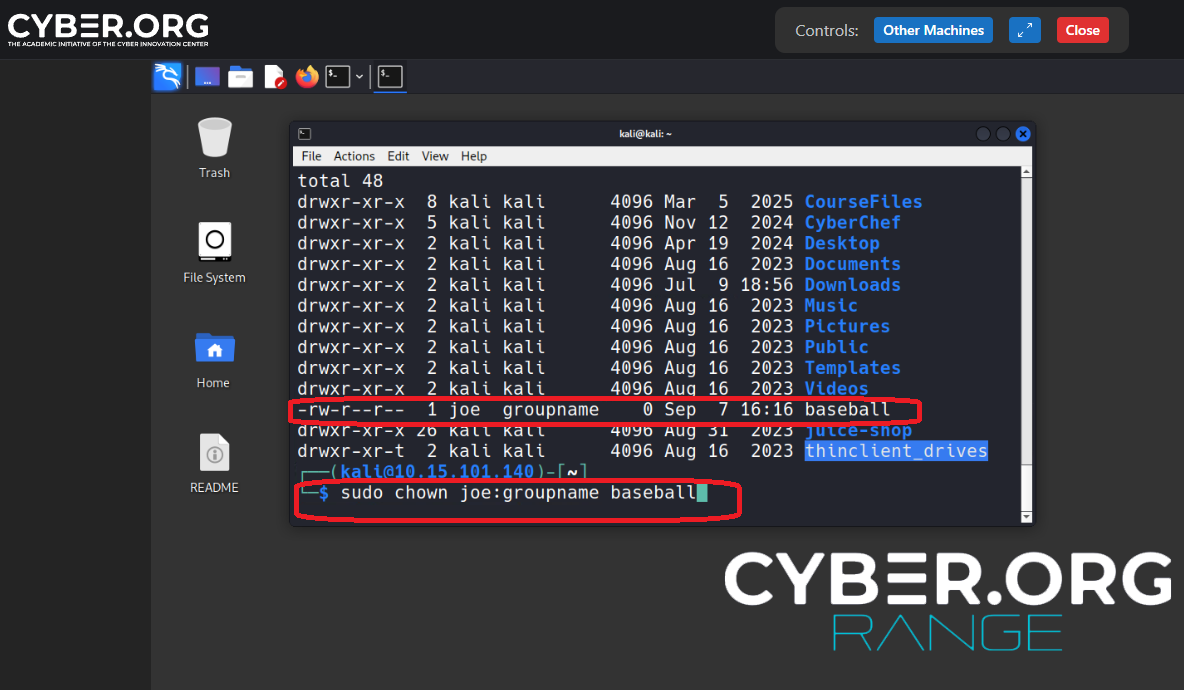
Learning about Kali Linux File/Folder Ownership.
- You will need to run a command to set up another user in Kali Linux.
- Once your Kali Linux cyber account is running, open a terminal.
- Run:
sudo adduser yourname - Replace yourname with your first name.
- Click here to learn about file and folder ownership.
- How to create a group in Kali Linux.
- Click here to see an example.
- Mr. Cusack will lecture on this.
Due Date: August 28, 2026
Complete this: Ownership1, Ownership2
- Assignment 1: Create files:
touch Mechanic,touch Artist,touch CyberExpert,touch musician.
(Hints - Click here)
- Create users with
sudo adduser:lastname,jack,maddy. - Create groups:
teacher,student,parent,assistant. - Use
chownto change ownership and verify withls -l. - Then type
echo "your lastname"and runhistory.
(Hints - Click here)
- Take screenshots and record a video (
PX_lastname_Ownership1.png,PX_lastname_Ownership1.mp4). - Type
clear, thenls -land set group ownership:sudo chown "lastname":student Artistsudo chown jack:parent Mechanicsudo chown maddy:assistant musicianls -l
- Again, type
echo "your lastname"andhistory.
(Hints - Click here)
- Ensure screenshots and video are saved (
PX_lastname_Ownership2.png,PX_lastname_Ownership2.mp4). - Submit the 4 files in Google Classroom when Mr. Cusack adds the assignment.