Week of August 17, 2026


Due: August 17, 2026 Monday
2. Write Your Schedule on Paper
- Take out a sheet of paper and a pen or pencil.
- If using a pen, use blue or black ink.
- Write down your complete class schedule.
- View an example schedule .
- Watch the video instructions .
- Turn your completed paper schedule in to Mr. Cusack.
Due: August 17, 2026 Monday
3. Set Up Google Classroom
- Click here for instructions and class codes .
- Confirm that you have joined and set up all required Google Classrooms.
Due: August 17, 2026 Monday
4. Set Up Your Grading Sheet
- Open the grading sheet .
- Make a copy of the document.
- Rename the document by replacing
Copy ofwith your last name. - Add the Cusack Standard Heading.
- Place the file in the correct Google Drive folder.
- Change sharing permissions so Mr. Cusack can edit it.
- Email Mr. Cusack with the subject:
Grading Sheet - Your Name - The body of the email should contain only the link to your grading sheet.
- Do not send the document using Google's Share notification.
Due: August 17, 2026 Monday
5. Organize Your Google Drive
Create and organize your course folders under 2026_27KleinCollins.
- Your Google Drive should already be set up. If it is not, raise your hand.
- Watch the video instructions .
- Take a screenshot of your completed folder structure.
- Save the screenshot as:
PX_Lastname_organizeFiles.png - Save it in the correct Google Drive folder.
- Submit it in Google Classroom when the assignment becomes available.
Due: August 17, 2026 Monday
6. Prior Knowledge
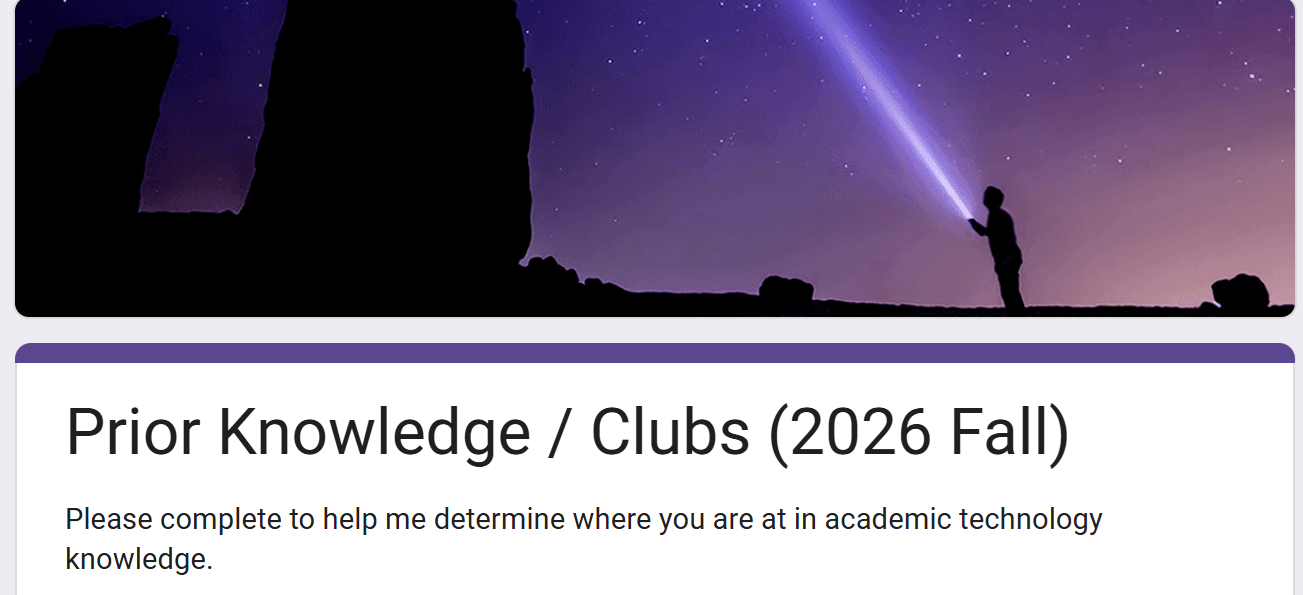
- Complete the Prior Knowledge form .
- When finished, take a screenshot.
- Save it as:
PX_Lastname_PriorKnowledge.png - Replace
PXwith your class period. - Replace
Lastnamewith your actual last name. - Verify that your filename is correct.
- Save the file in your required Google Drive folder.
- Submit it in Google Classroom when the assignment becomes available.
Due: August 17, 2026 Monday
7. Restorative Chat Practice
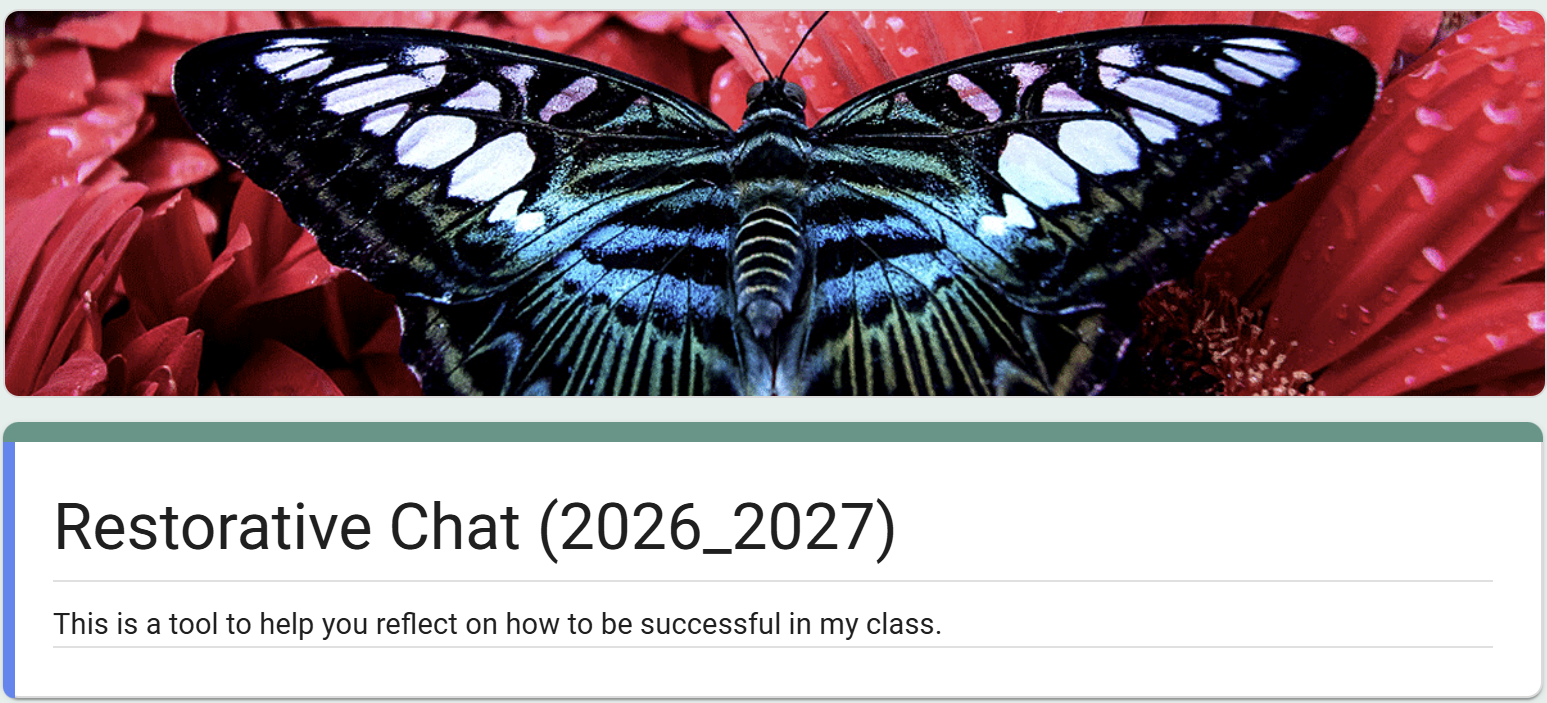
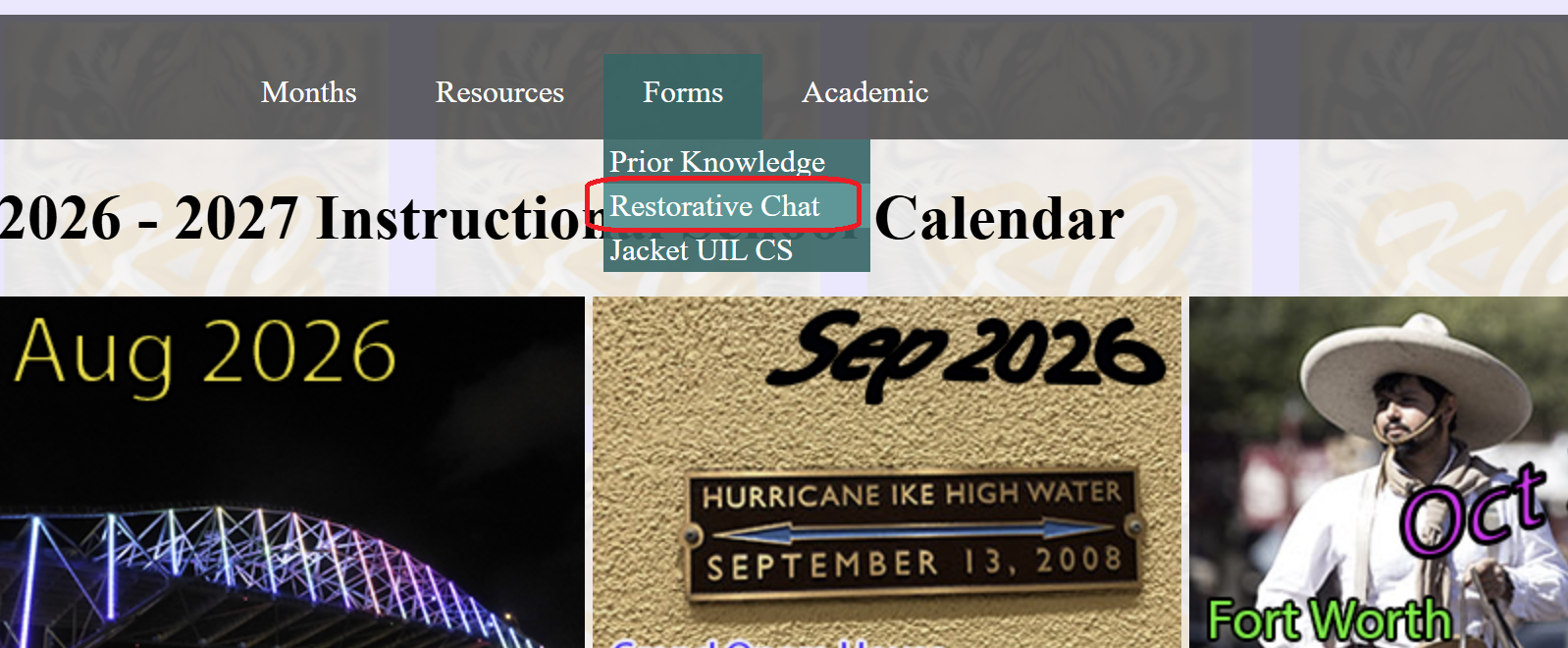
- Locate the Restorative Chat link on the Instructional Calendar.
- In the field asking what happened, enter:
This is practice only - Complete the practice chat.
- Take a screenshot of the final page.
- Save it as:
PX_Lastname_RestorativeChat.png - Replace
PXwith your class period andLastnamewith your actual last name. - Save the screenshot in the correct Google Drive folder.
- Submit it in Google Classroom when the assignment becomes available.
Where is the Restorative Chat link?
Due: August 17, 2026 Monday
8. Set Up Your Wayground Account
- Open Wayground .
- Register using your school email address.
- Take a screenshot showing your account.
- Save it as:
PX_Lastname_Wayground.png - Replace
PXwith your class period andLastnamewith your actual last name. - Save the file in your correct Google Drive folder.
- Submit it in Google Classroom when the assignment becomes available.
Due: August 17, 2026 Monday
9. Join Your Wayground Group
- Find your class and period in the Wayground Group document.
- Click here to find and join your Wayground Group .
- Locate your class period.
- Click the appropriate Wayground Group link.
- Join the group.
- Take a screenshot after joining.
- Save it as:
PX_Lastname_WayGroup.png - Replace
PXandLastnamewith your information. - Save the file in the correct Google Drive folder.
- Submit it in Google Classroom when the assignment becomes available.
Due: August 19, 2026 Wednesday
10. Learn a Little About HTML
- Watch the example video .
- Open Notepad.
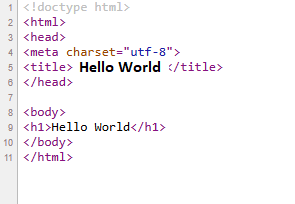
- Type the Hello World program shown here .
- Save the HTML file as:
PX_Lastname_HelloWorld.html - Take a screenshot and save it as:
PX_Lastname_HelloWorld.png - Replace
PXwith your class period andLastnamewith your actual last name. - Save both files in the correct Google Drive folder.
- Submit the required files in Google Classroom.
Due: August 17, 2026 Monday
11. Get to Know You
- View the example .
- Complete your "Get to Know You" assignment on paper.
- Turn the completed paper in to Mr. Cusack.
Due: August 19, 2026 Wednesday
12. Learn About Web Coding — Small Program
- Open Notepad.
- Ask Mr. Cusack for the "30 small html PROGRAMS. ".
"YOU MUST PICK THE ONE THAT MATCHES YOUR SEAT NUMBER ". - Save your program as:
PX_Lastname_smallSeat?Web.html - Replace the ? on the lines with your seat number.
- Save your screenshot as:
PX_Lastname_smallSeat?Web.png - Save your video as:
PX_Lastname_smallSeat?Web.mp4 - Replace
PXwith your class period andLastnamewith your actual last name. - Save all files in the correct Google Drive folder.
- Submit the required files in Google Classroom.
Due: August 19, 2026 Wednesday
13. Learn About Web Coding — Large Program
- Open Notepad.
- Ask Mr. Cusack for the "30 LARGE html PROGRAMS. ".
"YOU MUST PICK THE ONE THAT MATCHES YOUR SEAT NUMBER ". - Save your program as:
PX_Lastname_LargeSeat?Web.html - Replace the ? on the lines with your seat number.
- Save your screenshot as:
PX_Lastname_LargeSeat?Web.png - Save your video as:
PX_Lastname_LargeSeat?Web.mp4 - Save all files in the correct Google Drive folder.
- Submit the required files in Google Classroom.
Due: August 20, 2026 Thursday
14. Build your Eclipse IDE
- Mr. Cusack will lecture on this.
- Open up your company portal.
- Download Eclipse IDE.
- Configure Eclipse with directories.
- Manipulate files and commands.
- Screen print the final result.
- Save your screenshot as:
PX_Lastname_Eclipse.png - Save your file to your correct Google Drive folder.
- Submit the required files in Google Classroom.
Find Your Course
Click your course icon to open the class page.

Independent Study 1
Periods 1–8

Video Programming
Period 1

Advanced Video Programming
Period 2, 4

AP Cybersecurity
Period 2, 8
KP Computer Science 1
Period 4

AP Computer Science A
Period 5

AP Computer Science Principles
Period 7

Practicum Computer Science
Periods 3, 4, 6, 7